
The AUTOPROP CMA tool offers a fast, intuitive, and effective way to create Comparative Market Analyses (CMAs). It can be used for listing presentations, buyer representation, or to provide market updates for your existing client portfolio.
This guide walks through how to access the CMA tool, select comparables, apply adjustments, review pricing guidance, and share your final CMA with clients.
Step 1: Access the CMA Tool
Start by selecting your subject property from the AUTOPROP Dashboard.
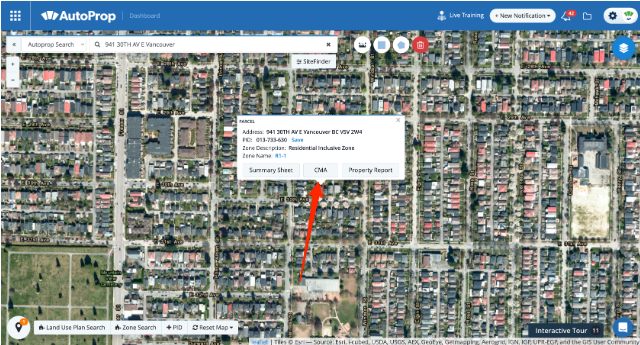
Ways to Select a Property
You can select a property by:
-
Typing in the address
-
Searching by PID
-
Right-clicking directly on a parcel in the map view
Once the parcel is highlighted in red:
-
Click on the selected parcel
-
Choose the CMA option
This opens the CMA workspace for that property.
Step 2: Review Subject Property Information
After opening the CMA tool, review the left-hand panel, which displays key details about the subject property.
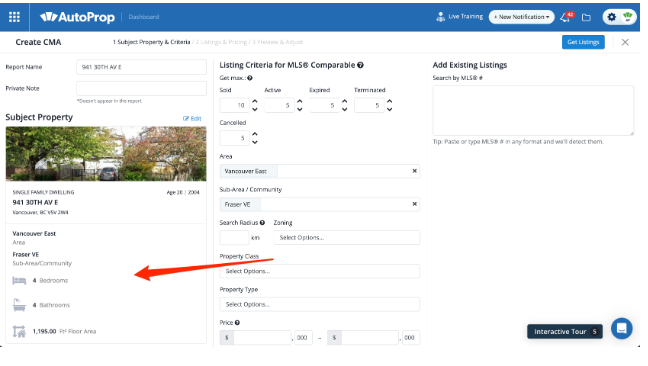
This includes:
-
Municipal Zone Code
-
Property classification
-
Tax record information from MLS®
Confirm this information is accurate before proceeding, as it impacts the relevance of your comparable selection.
Step 3: Enter CMA Search Criteria
The centre panel is where you define the criteria for your CMA.
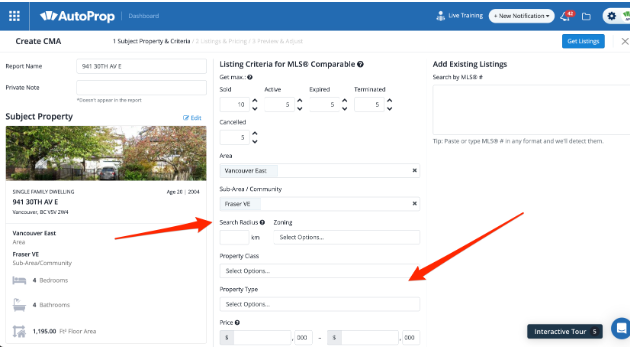
Available Search Options
You can filter by:
-
Listing status (up to 5 statuses)
-
Maximum number of results per status
-
Area, Sub-Area, or Radius
-
Zoning
-
Property Class and Property Type
-
Search date range
-
List date range
-
Status change date range
-
Additional advanced filters
Some criteria are pre-filled by default. You are free to adjust these based on your objectives.
Best Practice
At a minimum, it is strongly recommended to start with:
-
A geographic filter
-
A clear time frame
This ensures more relevant and defensible results.
Step 4: Add Specific Listings Manually (Optional)
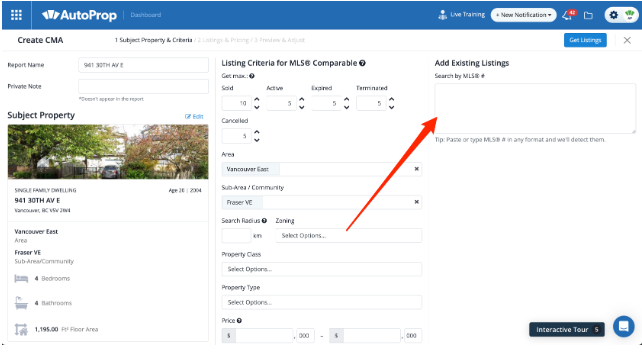
If you already know which comparables you want to include:
-
Enter the MLS® number(s) manually in the right-hand panel
This is useful when:
-
A client references specific properties
-
You want to include known benchmarks
-
You are refining a CMA after initial results
Step 5: Generate and Review Listings
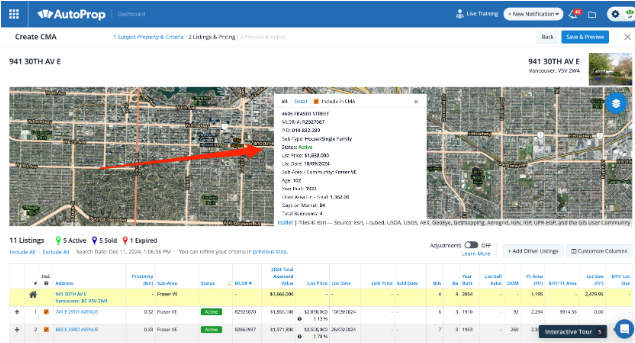
Once you are satisfied with your criteria:
-
Click Get Listings
-
AUTOPROP will display results on the map and in table view
Map View
-
Zoom in to see a closer view of the results
-
Click on map pins to open listing dialogue boxes
-
Click Detail to open the full listing sheet and photos
Table View
Scroll down to view results in table format.
From here you can:
-
Uncheck listings to remove them from the CMA
-
Click addresses to view full listing details, REALTOR® notes, and photos
Unchecked listings will not appear in pricing calculations or client-facing presentations.
Step 6: Apply Adjustments
To account for property differences or market conditions:
-
Click on the Adjustments tab
-
Apply adjustments to individual comparable listings as needed
Adjustments help refine pricing logic and improve the accuracy of your CMA, particularly when properties differ in size, features, or condition.
Step 7: Review Price Guide and Price Ranges
Scroll to the bottom of the page to review the Price Guide and Price Ranges.
Price Guide
-
Includes only listings with checked boxes in table view
-
Unchecked listings are excluded from:
-
The Price Guide
-
The CMA presentation shared with clients
-
Including Price Ranges
You may enter custom values to include price ranges in your CMA presentation.
AUTOPROP calculates two price ranges:
Based on Floor Area
(Average Price per Square Foot × Subject Property Floor Area) ± 3%
Based on Lot Size
(Average Price per Square Foot × Subject Property Lot Size) ± 3%
This creates a total 6% spread between the lower and upper ends of each range.
Step 8: Add Notes and Strategy Commentary
To include commentary or analysis:
-
Click Add Note under the Strategy section
-
Enter your notes, pricing rationale, or market insights
These notes appear in the CMA presentation and help clients understand your recommendations.
Step 9: Preview and Adjust Your CMA
Once you’re satisfied with your analysis:
-
Click Save & Preview
Previewing the Presentation
-
Use the tabs to review what your client will see in the interactive web version
-
To reorder or remove tabs, click Adjust CMA Contents
You can also:
-
Review your search criteria
-
Add images or supporting documents
Step 10: Share Your CMA
When ready to present or deliver:
-
Click Share CMA
You can generate:
-
A PDF
-
An interactive web link
Choose the format that best suits your presentation style and your client’s preferences.
Curious what a finished CMA might look like? View a Sample
Important Notes and Tips
-
AUTOPROP allows for price adjustments on comparables. For advanced guidance, refer to the dedicated price adjustment help resources.
-
CMAs are automatically saved to your account once you reach the Preview & Adjust stage.
-
To access saved CMAs, click the folder icon in the top right corner of any AUTOPROP page.
-
Interactive CMA web links are a snapshot in time and do not update automatically if listing data changes.
-
To revoke client access to a shared web link, you must delete the CMA from your saved collection.
-
If you need to keep a record, generate and save a PDF before deleting the CMA.
Support and Access
Live chat support is available directly within AUTOPROP:
-
Monday to Friday
-
8:00 AM – 5:00 PM PST