
AUTOPROP provides powerful tools for creating professional, data-rich property reports that can be used for listing presentations, pricing discussions, and general due diligence. These reports are fully customizable and can be saved, shared, or printed with your branding.
This guide walks you step by step through selecting a property, creating reports, adjusting their contents and appearance, and saving or sharing them with clients.
Step 1: Select a Property
To begin, you need to select the subject property you want to report on.
Option A: Search by Address
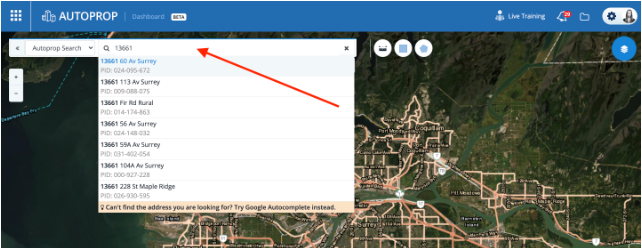
-
Type the property address into the AUTOPROP search box.
-
Select the correct property from the list that appears below the search field.
Option B: Select from the Map
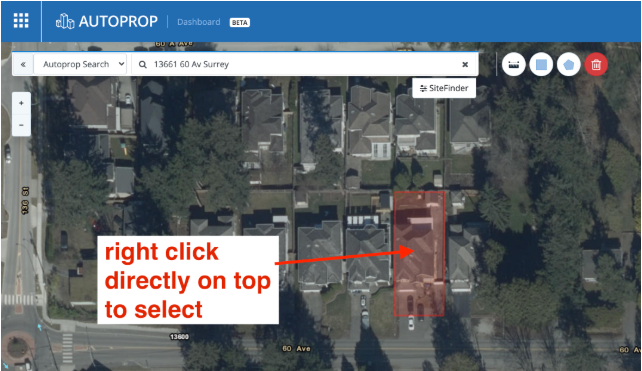
If you do not have a specific address:
-
Navigate the map view in AUTOPROP.
-
Right-click on the parcel you want to report on.
-
Select the option to create reports for that property.
Once a property is selected, you can begin generating reports.
Step 2: Create a Summary Sheet
The Summary Sheet is a one-page report that highlights key information about a property. It is ideal for quick reference, early conversations with clients, or inclusion in a listing presentation.
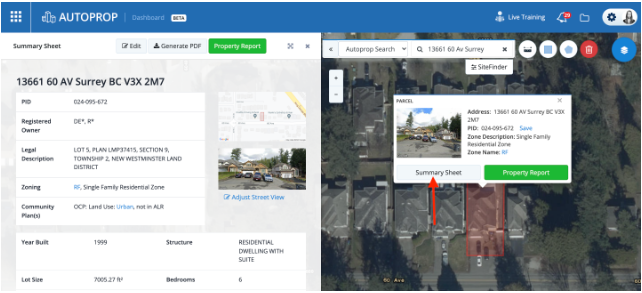
How to Create a Summary Sheet
-
Click the Summary Sheet button.
-
A new window will open displaying the Summary Sheet for the selected property.
-
Review the information shown to ensure it aligns with your objective.
The Summary Sheet presents concise, relevant property data in a clean format.
Step 3: Save, Email, or Print the Summary Sheet
Once your Summary Sheet is ready, you can generate a PDF.
How to Save or Share
-
Click Generate PDF.
-
In the pop-up window, click Generate PDF again.
-
Wait for the PDF to process.
You will then see options to:
-
Download as PDF (to save or print)
-
Send Private Link to Client (opens your default email app)
When saved or printed, the Summary Sheet will include your custom branding.
For branding setup, refer to AUTOPROP’s custom branding guide:
https://help.autoprop.ca/en/articles/7211839-customize-the-branding-on-your-reports
Step 4: Create a Property Report
Property Reports are more comprehensive than Summary Sheets and are commonly used for listing presentations, detailed due diligence, and pricing support.
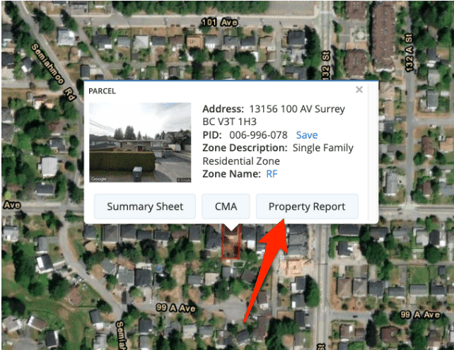
How to Create a Property Report
-
Click on the Property Report tab.
-
The Property Report window will open with compiled data for the selected property.
Step 5: Adjust the Contents of the Property Report
AUTOPROP allows you to customize exactly what data is included in your Property Report.
How to Adjust Report Contents
-
Click Adjust Report Contents.
-
Review the list of available data sources.
You’ll notice yellow stars next to some data sources. These indicate default selections.
Setting Your Defaults
-
Click the star next to a data source to mark it as a default.
-
Click Update to reload the report with your selected data.
Adding Your Own Documents
If you have additional documents you want included:
-
Use the provided options to merge your own files into the report.
Sorting the Report
-
Click Sort to rearrange the order of data sources.
-
Organize the report in a sequence that best supports your presentation.
Step 6: Adjust the Cover Page
You can customize the appearance of the Property Report cover page to better reflect the property and your branding.
How to Adjust the Cover Page
-
At the top of the report, click Adjust Cover Page.
-
You can:
-
Upload an image from your computer to replace the street view image
-
Adjust the Street View image by dragging, zooming, or moving up and down the street
-
Click Use this Street View to save the selected view
-
Toggle Google map preview images on or off using the checkbox
-
-
Click Confirm to save your changes.
Step 7: Save, Email, or Print the Property Report
Once your Property Report is finalized:
How to Generate the PDF
-
Click Generate PDF.
-
Click Generate PDF again in the pop-up.
-
Wait for the report to process.
You will then have options to:
-
Download as PDF
-
Send Private Link to Client
-
Copy a link to the PDF
If you download the PDF:
-
It will open in a new tab
-
Use the download icon to save
-
Use the printer icon to print
Final Step: You’re Done
Congratulations — you’ve successfully created and saved your first AUTOPROP Property Report.
With practice, these reports become a powerful part of your listing presentations and client conversations, helping you communicate value, support pricing strategies, and demonstrate professionalism through clear, data-driven insights.
Learn more from Autoprop: https://help.autoprop.ca/