
All Pemberton Holmes signage and print templates are available for purchase and delivery through PrintDeals.ca. Along with our pre-built templates, you can use their design centre to create your own custom materials. You can even upload designs directly from Canva.
Step 1: Create Your PrintDeals.ca Account
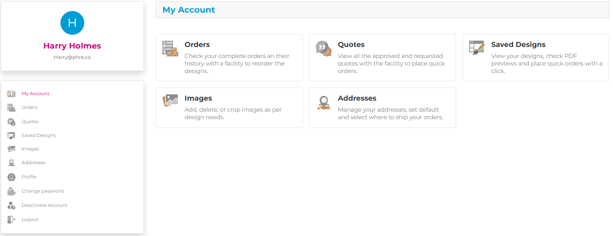
There are multiple ways to create an account, including using Google or Facebook sign-in partner options. All new accounts get access to an exclusive 10% discount on your first order using code 'PH10'
Your account allows you to access a variety of features, including saving designs, uploading images, and accessing your current and previous orders.
Step 2: Access the Pemberton Holmes Shop
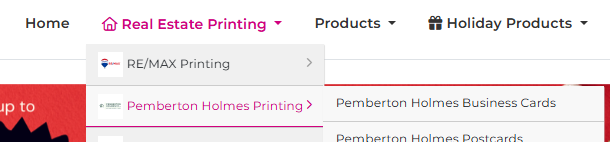
Once your account is created, navigate to the Pemberton Holmes section by selecting “Real Estate Printing” → “Pemberton Holmes.” This dedicated area contains a wide range of PH-approved templates designed to fit our brand standards.
Whether you’re ordering business cards, lawn signs, postcards, or open house materials, these pre-built options help ensure that all printed materials are visually consistent and professionally aligned with our brokerage identity.
Step 3: Choose a design

There are tons of design options to choose from. These range from business cards, card stock, business cards to for sale and lawn signs. You can choose any number of designs here to customize.
Tip: Printdeals offers assistance with direct mail campaigns when choosing the 'Postcard' option. You simply choose a postal code and print out amount. Their team will be in touch to set-up the campaign.
Step 4: Select Your Product Details
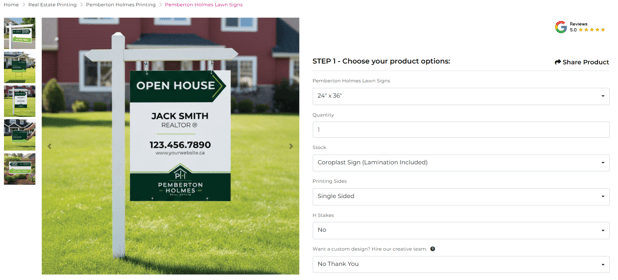
Here you can determine the size, quantity, type of material and more.
Step 5: Choose a design option
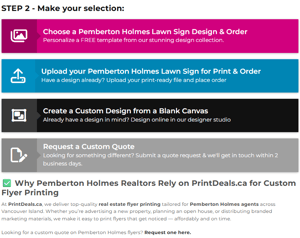
Next, you are able to customize your template by choosing the button 'Choose and Pemberton Holmes <product> & Order'
Other options include: (1) uploading your own design, (2) creating custom designs from within their design centre, or (3) speaking with a member of their team to create designs for you!
Tip: If you're uploading from Canva, export your design as a PDF – Print (High Quality) to ensure colours and details remain crisp after printing.
Step 6: Using the PrintDeal's Design Centre
The built-in design studio functions similarly to Canva, offering intuitive tools for precise customization. You can lock and unlock elements to maintain alignment, flip or remove backgrounds from images, and layer elements to create professional layouts. The integrated QR code generator allows you to create scannable links for listings, landing pages, and contact information.
You can also upload personal images (e.g., headshots, icons, branding elements) and browse the platform’s stock library for supplementary graphics.
1. Locking and Unlocking elements

You can lock and unlock elements during editing. This is noted by a small lock icon over two dashed lines.
2. Flipping Images and Removing image backgrounds
You are also able to remove image background and flip any image you like. This can be especially useful for putting your headshot on any print materials.
3. Layering Tools:
You are able to layer elements to place them in front or behind other items. This can help to give your designs a professional edge.
4. QR Code Generator
The program also has a built in QR code generator you can use to generate QR codes for your website landing pages, listing pages, and more.
Step 7: Save your design and place your order!
After completing your design, save it to your account for future edits or reorders. At checkout, you’ll enter your payment information and shipping details. If you have deadlines—such as a listing launch—use the notes section to communicate timing needs. The PrintDeals team generally responds quickly and works to meet the timeframes listed on the product page.
Tip: Save your most-used items (business cards, open house signs, feature sheets) as templates. This makes future orders take only minutes to complete—especially helpful during busy listing periods.